You are using an outdated browser. Please
upgrade your browser to improve your experience.

Functions of the notebook's GPU temperature, FAN speed, and speed control

FlexiAccess WIFI 2.0
by FlexiAccess


What is it about?
Functions of the notebook's GPU temperature, FAN speed, and speed control.
App Screenshots
App Store Description
Functions of the notebook's GPU temperature, FAN speed, and speed control.
Generally a full-screen display is used when playing games in a Gaming notebook, and the extensive use of the GPU’s computing power during gaming means that the GPU operates at high speed. This also causes the GPU temperature to rapidly climb. At this time, if you want to check the GPU’s temperature is not too high, or if the GPU's fan speed needs to increase to lower the temperature, then you would have to attach an additional external display to monitor this important information. Many gamers will even start GPU overclocking features to get a better gaming experience, and at this time it is particularly important to control and monitor the GPU’s overclocking speed, temperature and fan speed. However not every gamer either has another available display, or enough desktop space, to position another display. The most convenient solution at this time is to use what most people have, a Smartphone. Therefore, gamers can use their Smartphone to monitor the Gaming notebook's GPU temperature, fan speed and speed control, and can even adjust the overclocking parameters.
Notebook requirements:
1. Control center APP
2. Wi-Fi
How to start FlexiAccess:
1. The Control Center must first be installed on the notebook.
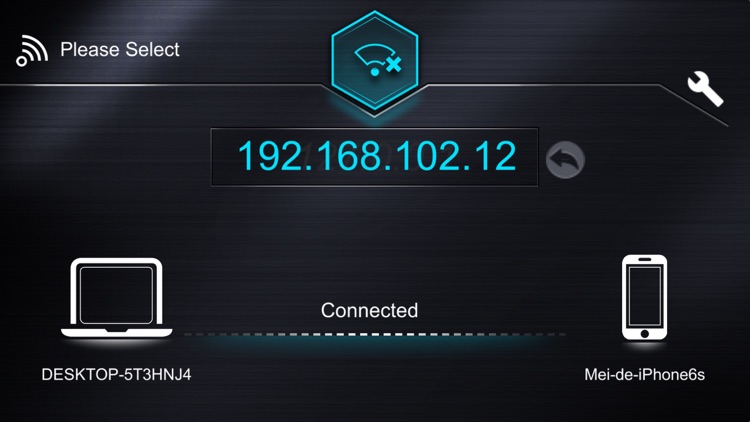
2. Turn on Wi-Fi, setup the notebook and mobile phone to connect the same Wi-Fi network.
3. Open the FlexiAccess program in the Control Center.
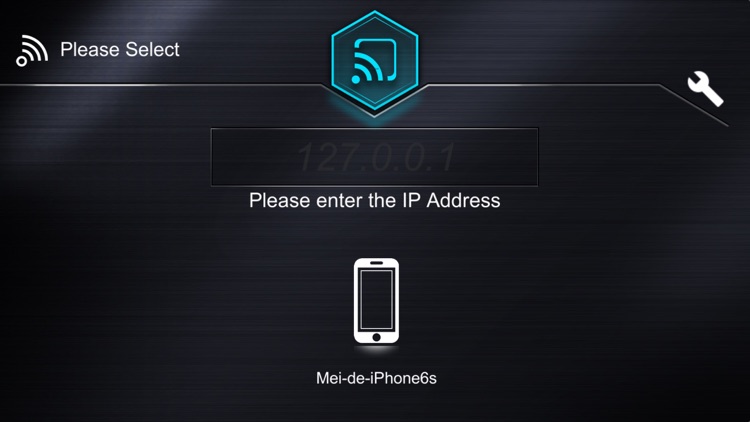
4. Turn on the mobile phone's FlexiAccess and enter the IP address.
Disclaimer:
AppAdvice does not own this application and only provides images and links contained in the iTunes Search API, to help our users find the best apps to download. If you are the developer of this app and would like your information removed, please send a request to takedown@appadvice.com and your information will be removed.
AppAdvice does not own this application and only provides images and links contained in the iTunes Search API, to help our users find the best apps to download. If you are the developer of this app and would like your information removed, please send a request to takedown@appadvice.com and your information will be removed.
