You are using an outdated browser. Please
upgrade your browser to improve your experience.

Musical Envision

Musical Envision
by Christopher Bach


What is it about?
Musical Envision
App Screenshots


App Store Description
Musical Envision
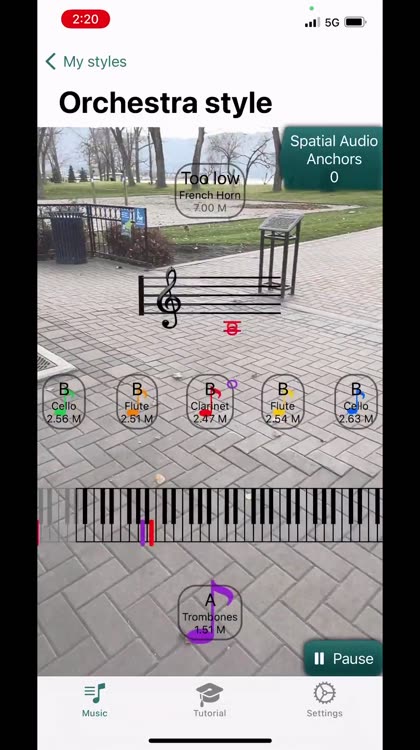
The world around you is transformed into music using camera and LIDAR measurements, augmented reality and spatial audio.
For an amazing spatial audio experience, you can also anchor musicians or musical tracks to surfaces around you in the real world (AR Augmented Reality).
Hardware:
—iPhone 12 and 13 Pro, iPad Pro 2020+. Envision is designed to work best with with LIDAR (Laser ranging) enabled devices
—iPhones 7 and higher, and most newer iPads. Envision will work OK with non Pro iPhones and iPads, but with lower performance and accuracy. Without LIDAR, flat walls and plain surfaces are not as easily easily detectable. The more pattern and variability in the images, and the stronger the lighting, the better.
—Headphones. or best results, use stereo headphones. Apple AirPods Pro are a particularly good choice, as they support transparent mode to allow you to hear outside sounds, while at the same time listening to the musical world created by Envision. Envision will work without headphones, but the stereo and spatial audio effects will be less obvious.
Operating system:
—Musical Envision is designed for iOS and iPad OS 15 or higher.
Scanned mode:
—Measures the distance to five or seven objects in the camera, and creates or modifies music based on the distances.
Spatial audio anchors mode:
—Spatial audio allows musical tracks to be anchored to surfaces in the real world. In each style, select Spatial Audio Anchors using the button on the top right corner. The topmost musician will play right away. The other musicians will play a “tap” until you click the “Play” button. After you click play, the musicians will all play together. If you click the “Sync all” button, the anchored musicians will synchronize with the scanned musicians.
Styles:
—Song styles. Styles that are marked as "Song" are complete songs with multiple tracks, each assigned to a different section of the screen.
—Instrument styles. Other styles create the music automatically based on the distance to the objects visible ahead or the shape of the room. The closer the object, the higher the notes. There are several different musical scales and effects like reverb being used.
Disclaimer:
AppAdvice does not own this application and only provides images and links contained in the iTunes Search API, to help our users find the best apps to download. If you are the developer of this app and would like your information removed, please send a request to takedown@appadvice.com and your information will be removed.
AppAdvice does not own this application and only provides images and links contained in the iTunes Search API, to help our users find the best apps to download. If you are the developer of this app and would like your information removed, please send a request to takedown@appadvice.com and your information will be removed.
