You are using an outdated browser. Please
upgrade your browser to improve your experience.
This special edition app is created for BNI Chapters to easily make their Chapter directory available in a easy to use Mobile application

BNI Biz.Directory
by Tekdi Web Solutions
What is it about?
This special edition app is created for BNI Chapters to easily make their Chapter directory available in a easy to use Mobile application.
App Screenshots
App Store Description
This special edition app is created for BNI Chapters to easily make their Chapter directory available in a easy to use Mobile application.
The App uses Google Spreadsheets as the data source making it super easy to maintain and update remotely !
Features
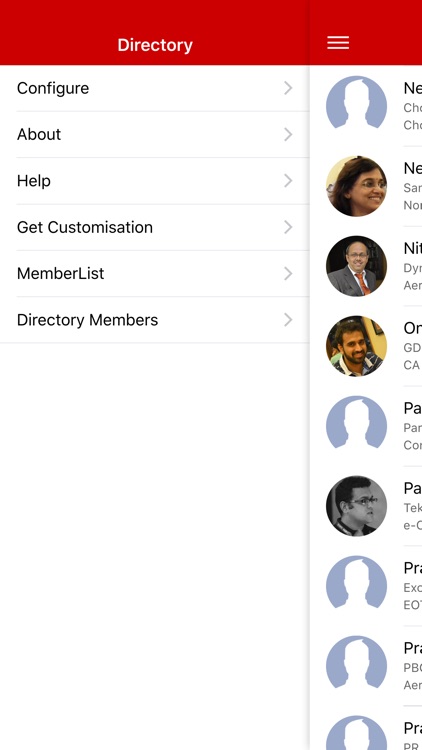
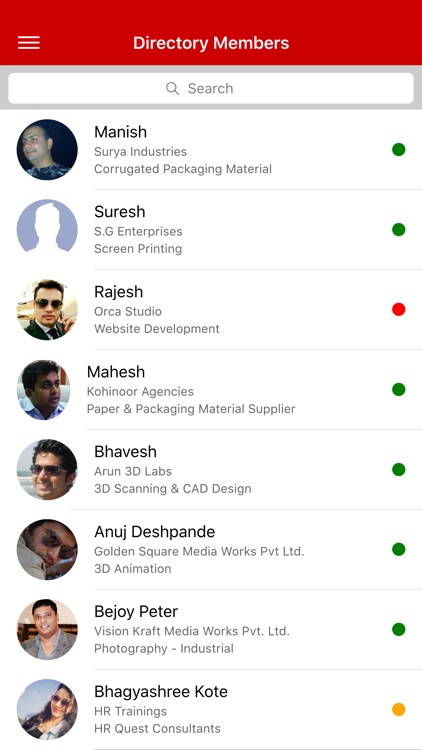
See a list of all your members
Simple search to search by name
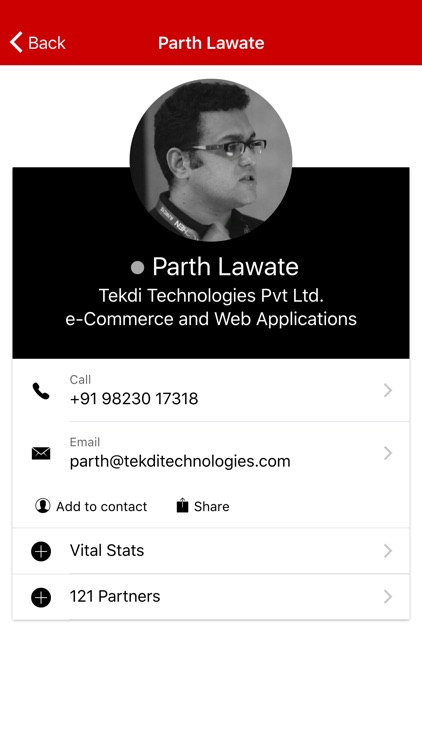
Details view showing complete member details
Tap to Call , Add as Contact , Share contact , Tap to Email
See Member Traffic Light status
See Member Vital Stats
See 121 Partners
See Member Bio Sheet & Dance Cards
App Setup
In order to use the app, follow the following instructions
This App uses Google Docs as the data source. A Sample BNI Google Spreadsheet has been made available and is specifically tiered towards BNI applications. You should make a copy of this in Google Spreadsheets to manage your data.
For End Users/ Organisation Members
This app uses Google Doc spreadsheets as the data source to display member information. Ask your Leadership team to give you the Memberlist Google Document or Quick use QR code to easily configure the application. If this is not setup, yet, look for ‘Setup Instructions’ below.
Download the Application
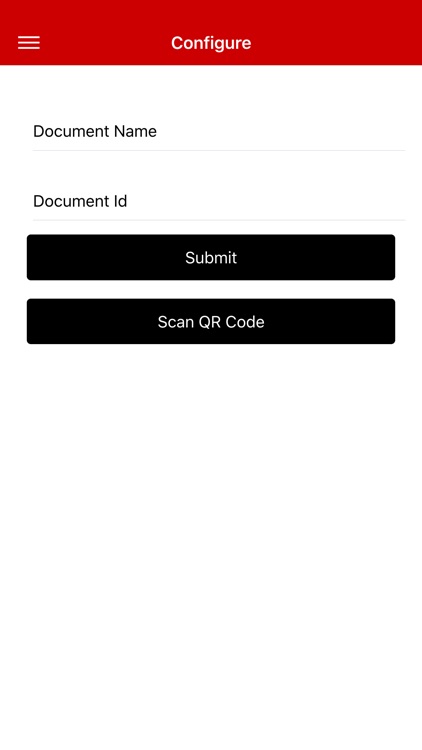
On the first run you will be shown a Configuration as below :
•Organisation Name :
•Google Spreadsheet ID :
You can either enter these manually or use the ‘Quick Scan QR code’ by tapping ‘Scan QR Code’.
If all is configured well, the App should start and show your directory. It will also save the config so you do not need to enter it again
Data Source Setup Instructions
•Make a copy of our Sample Google Spreadsheet. https://docs.google.com/spreadsheets/d/1C1n_6Sfyy5tzK31nwuL6GYzR4s2SBwcaYbdY_TXZRRM/edit#gid=0
•Now edit it the new Google Spreadsheet and change it to add data from your own Organisation. All fields are not compulsory
•Now in Google Spreadsheets, In the top right corner of your Copy of the sheet, Click on ‘Sharing Permissions’ and set them to “Anyone with the link can view”.
•Next go to File -> Publish to the web -> Publish and publish the spreadsheet
•Now look for the Unique document id for your document. You can find it in your document URL. https://docs.google.com/spreadsheets/d/SPREADSHEET_ID/edit#gid=0
This is the ‘Document ID’ that your members will need to configure their apps.
•You can make adding this super easy by creating a Quick Scan QR Code
•Go to https://www.the-qrcode-generator.com/
•There in the plain text box, enter your organisation name & Spreadsheet ID separated by a pipe ‘|’ in this format :
Your Organisation Name|SPREADSHEET_ID
•Generate the code. You can print this or show it on your phone to allow easy addition of your Organisation list.
Disclaimer:
AppAdvice does not own this application and only provides images and links contained in the iTunes Search API, to help our users find the best apps to download. If you are the developer of this app and would like your information removed, please send a request to takedown@appadvice.com and your information will be removed.
AppAdvice does not own this application and only provides images and links contained in the iTunes Search API, to help our users find the best apps to download. If you are the developer of this app and would like your information removed, please send a request to takedown@appadvice.com and your information will be removed.
