You are using an outdated browser. Please
upgrade your browser to improve your experience.
Using 'Compare 2 Text' you'll be able to automatically compare two bodies of text together and see comparison results with ease

Compare 2 Text
by Ebey Tech LLC


What is it about?
Using 'Compare 2 Text' you'll be able to automatically compare two bodies of text together and see comparison results with ease. Comparisons occur both directions, so you can see differences between the two bodies of text. Compare 2 Text is a fast and reliable app to show automatic comparison results for paragraphs of text. Compare 2 Text has easy to understand visuals that are colored in vibrant colors. Powerful filtering functions give you unparalleled capability to see fast text matching results.
App Screenshots


App Store Description
Using 'Compare 2 Text' you'll be able to automatically compare two bodies of text together and see comparison results with ease. Comparisons occur both directions, so you can see differences between the two bodies of text. Compare 2 Text is a fast and reliable app to show automatic comparison results for paragraphs of text. Compare 2 Text has easy to understand visuals that are colored in vibrant colors. Powerful filtering functions give you unparalleled capability to see fast text matching results.
1.) Start up app.
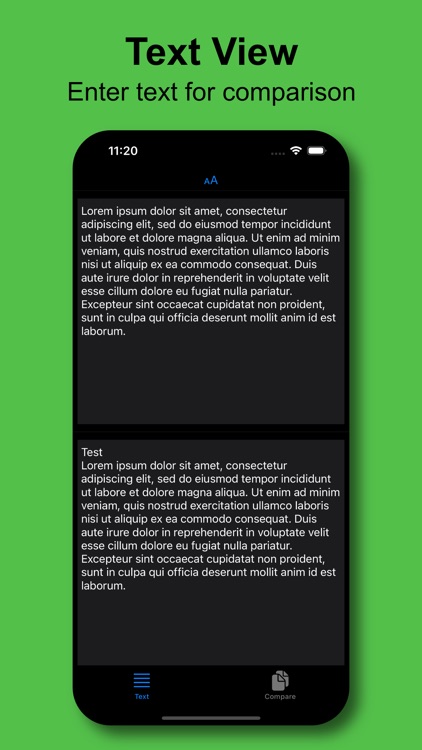
2.) Enter text into the top or left Text pane (depending on rotation).
3.) Enter text into the bottom or right Text pane (depending on rotation).
4.) Click "Compare" to see text comparison results, separated by selected Split Type in a List View format.
5.) Click to select a list item row for selection.
6.) Select appropriate Split Type. Carriage Return works ideal for most text comparison.
7.) Change text font size by selecting "Font Size" in the toolbar and selecting preferred value.
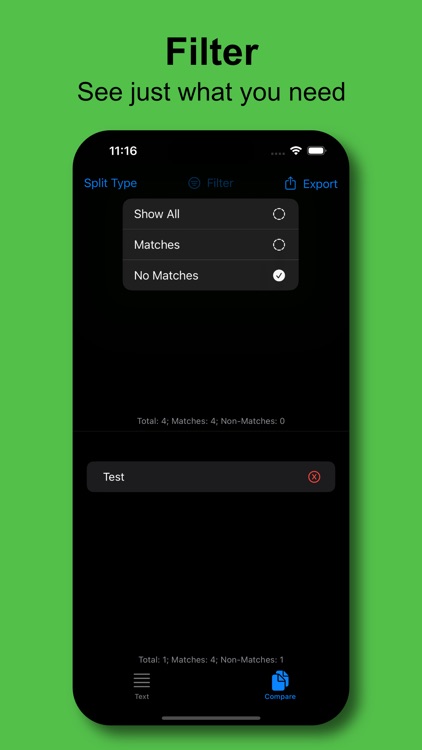
8.) Filtering of list can be achieved by changing the "Filter" option in the toolbar.
9.) Force-touch has options for list items to "Copy" text or to "Speak" the selected text.
Disclaimer:
AppAdvice does not own this application and only provides images and links contained in the iTunes Search API, to help our users find the best apps to download. If you are the developer of this app and would like your information removed, please send a request to takedown@appadvice.com and your information will be removed.
AppAdvice does not own this application and only provides images and links contained in the iTunes Search API, to help our users find the best apps to download. If you are the developer of this app and would like your information removed, please send a request to takedown@appadvice.com and your information will be removed.
