You are using an outdated browser. Please
upgrade your browser to improve your experience.

Summary:

PricePoint Pocket History
by Cloversoft Apps
What is it about?
Summary:
App Screenshots

App Store Description
Summary:
PricePoint Pocket History has been designed as a way for users of the PricePoint for Windows program to carry all of their customer histories with them on their handy Apple devices. The app is not designed to make changes to the information but is merely designed to provide access to the information as a handy reference.
Preparation:
After installing the app, PricePoint Pocket History requires that your data from your PricePoint program be placed in the apps shared documents folder which is accomplished using iTunes. Connect the device to your computer with a USB cable, start iTunes, select the device and click File Sharing. Select PPHistory to open the documents folder. In the PricePoint for Windows program click Utilities, Export to iPhone in the Main Functions Menu and select and drag and drop the file PP_To_iPhone.db3 into the PPHistory documents folder shown by iTunes. Now start PPHistory to view the data. If the app shows no data, tap the reload button at the top right.
Operation of PPHistory:
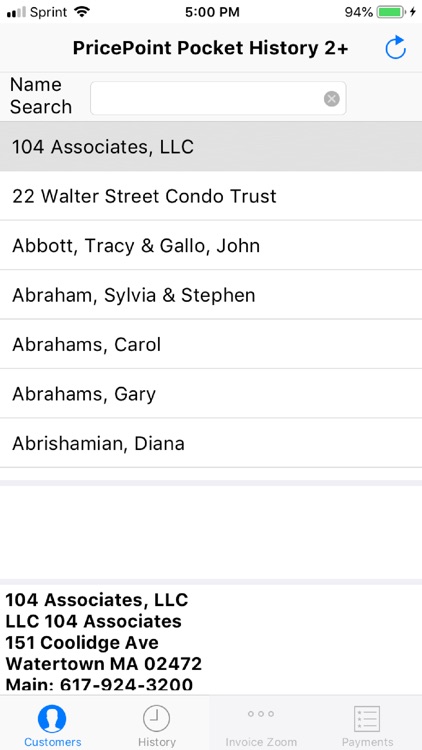
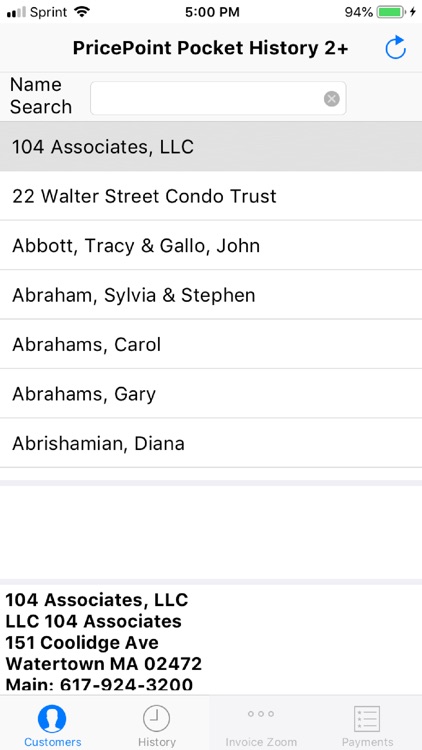
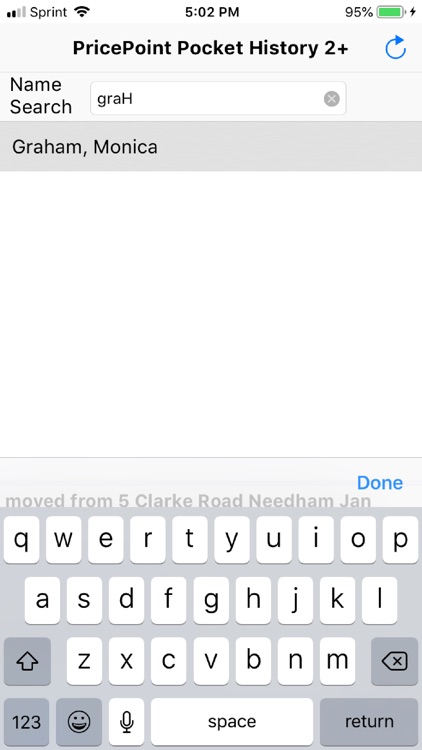
On the Customer tab, search for a customer name in the Name Search box, as you type the matching customer names will show in the list below the search box.
Selecting the customer name in the list will show the customer note in the box below the customer name matches and below that the customer address information.
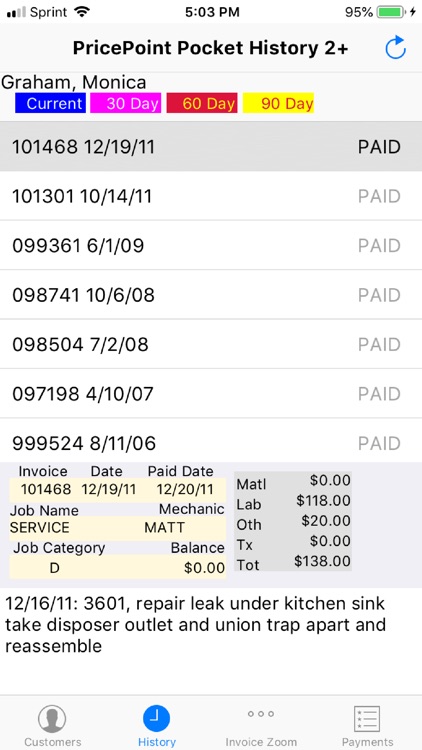
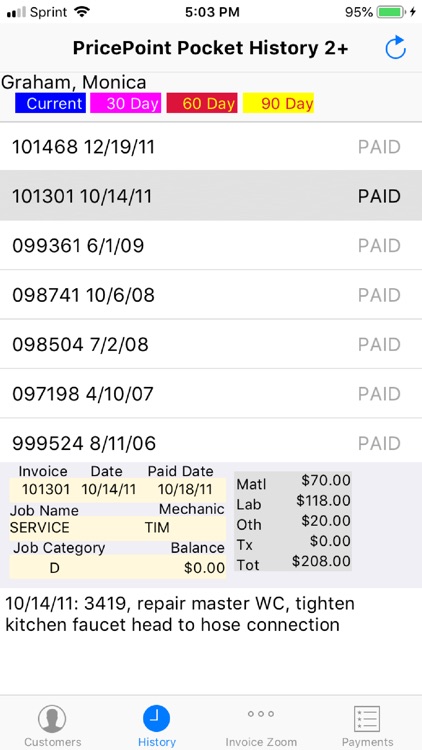
Tap the History tab to show a list all of the completed invoices for this customer listed from newest to oldest. A summary of the details of the selected invoice will display below the list along with the job description from the invoice at the bottom.
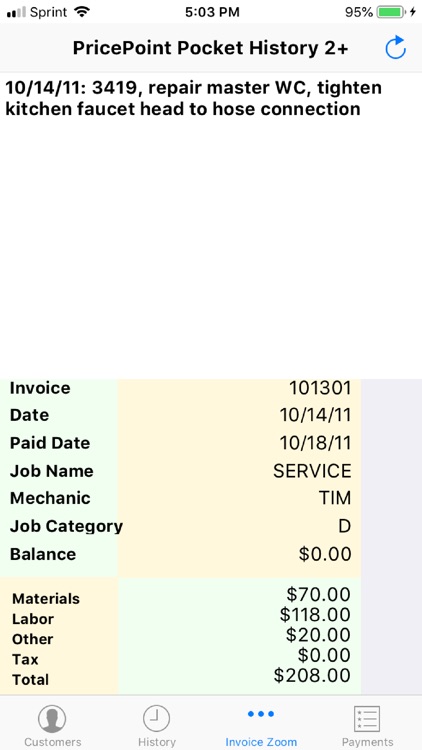
Tap the invoice zoom to see an expanded summary of the selected invoice.
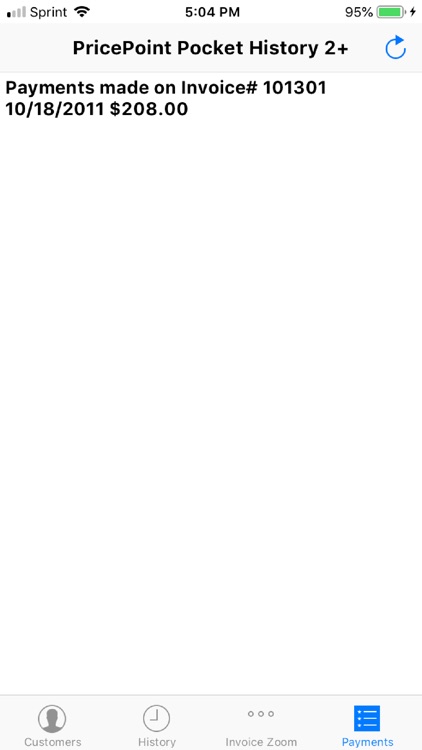
Tap the Payments tab to show the payment details of the selected invoice.
Disclaimer:
AppAdvice does not own this application and only provides images and links contained in the iTunes Search API, to help our users find the best apps to download. If you are the developer of this app and would like your information removed, please send a request to takedown@appadvice.com and your information will be removed.
AppAdvice does not own this application and only provides images and links contained in the iTunes Search API, to help our users find the best apps to download. If you are the developer of this app and would like your information removed, please send a request to takedown@appadvice.com and your information will be removed.
