You are using an outdated browser. Please
upgrade your browser to improve your experience.

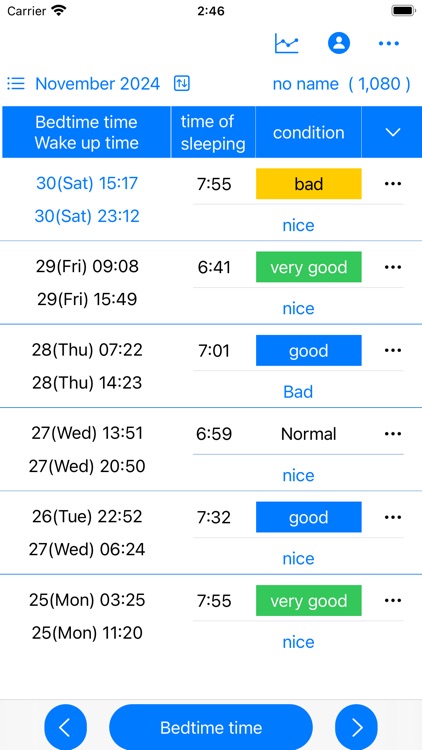
Sleep time is calculated and displayed based on bedtime and wake-up date and time

Sleep time record charts
by YUTAKA IZUMIYAMA


What is it about?
Sleep time is calculated and displayed based on bedtime and wake-up date and time.
App Screenshots


App Store Description
Sleep time is calculated and displayed based on bedtime and wake-up date and time.
Displays sleep time in a line graph.
・Record bedtime
1. Tap the "Bedtime" button.
If you press/tap for a long time, step 2/step 3 will be skipped.
The current date and time will be set.
2. Select the year, month, and day and tap "Next".
3. Select your bedtime and tap OK.
・When recording the wake-up date and time
1. Tap the "Wake up date and time" button in the wake up date and time column of the table.
If you press/tap for a long time, step 2/step 3 will be skipped.
The current date and time will be set.
2. Select the year, month, and day and tap "Next".
3. Select your wake-up time and tap "OK".
▼Sleep time
The sleep time in the table is automatically displayed based on the bedtime and wake-up date and time.
▼When recording your mood when you wake up
1. Tap "Condition" in the Condition column of the table.
2. Select a condition.
▼Display chart
1. Press the line chart button at the top.
2. Click the displayed chart from the menu below.
Monthly chart
sleep/wake chart
sleep/wake rhythm chart
Annual total/average/chart
Full period chart
▼Add user
1. Press the user button at the top
2. Press add user
3. Enter the username and press OK.
▼Edit username
1. Press the user button at the top
2. Press user edit and delete
3. Press the username from the list.
4. Edit the user name on the edit screen and press OK.
▼Delete username
1. Press the user button at the top
2. Press user edit and delete
3. Swipe the username you want to delete from the list from the left and press Delete.
▼If you want to delete all records
From the menu on the top right, select Erase all data.
You can delete all records.
Disclaimer:
AppAdvice does not own this application and only provides images and links contained in the iTunes Search API, to help our users find the best apps to download. If you are the developer of this app and would like your information removed, please send a request to takedown@appadvice.com and your information will be removed.
AppAdvice does not own this application and only provides images and links contained in the iTunes Search API, to help our users find the best apps to download. If you are the developer of this app and would like your information removed, please send a request to takedown@appadvice.com and your information will be removed.
