You are using an outdated browser. Please
upgrade your browser to improve your experience.
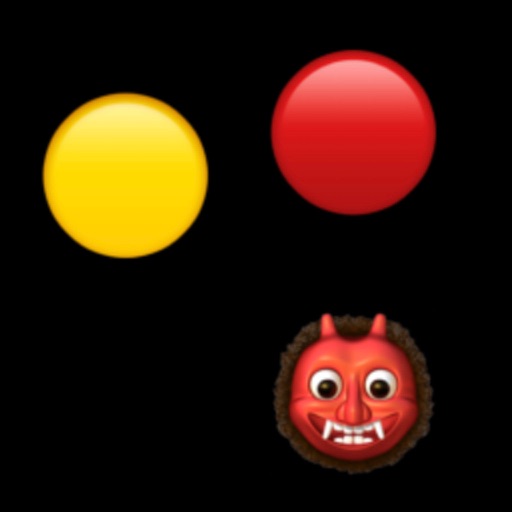
Once the game has started, click on the orange icon in the center of the playing field to turn off the pause and the dragon will start moving towards the ball closest to it

Take and Dodge
by Iulai Baichurin
What is it about?
Once the game has started, click on the orange icon in the center of the playing field to turn off the pause and the dragon will start moving towards the ball closest to it.
App Store Description
Once the game has started, click on the orange icon in the center of the playing field to turn off the pause and the dragon will start moving towards the ball closest to it.
Touch one of the colored rectangles at the bottom of the screen, move your finger slightly to the side and lift it above the screen. The ball of the same color as the rectangle will start moving in the direction in which you moved your finger.
To stop the ball, briefly touch the rectangle of the corresponding color.
Your task is to touch the heart of the same color with each ball, avoiding collisions with the dragon.
Remember that the balls bounce off the edges of the playing field.
You can use the slider to change the speed of the dragon.
With the second button from the right at the top of the screen you can set the number of balls on the playing field from 1 to 5.
With the right button you can restart the game.
To pause the game, click on an empty space on the playing field.
Disclaimer:
AppAdvice does not own this application and only provides images and links contained in the iTunes Search API, to help our users find the best apps to download. If you are the developer of this app and would like your information removed, please send a request to takedown@appadvice.com and your information will be removed.
AppAdvice does not own this application and only provides images and links contained in the iTunes Search API, to help our users find the best apps to download. If you are the developer of this app and would like your information removed, please send a request to takedown@appadvice.com and your information will be removed.
