You are using an outdated browser. Please
upgrade your browser to improve your experience.

The TU/e Library app enables patrons to search for titles in the TU/e library, and view title metadata and full text documents if available

TUeLibrary
by Eindhoven University of Technology
What is it about?
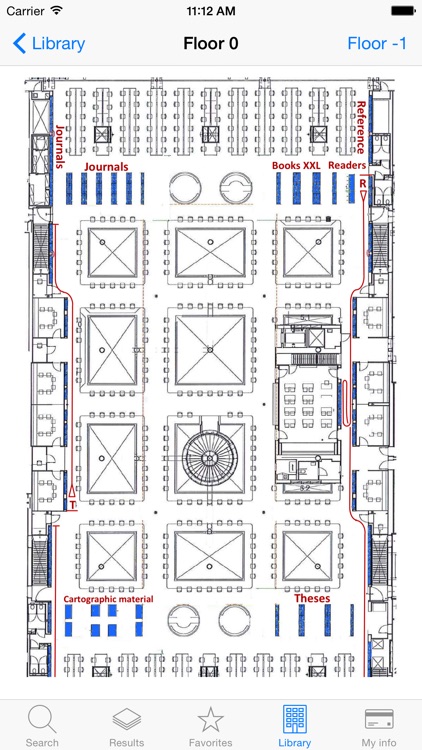
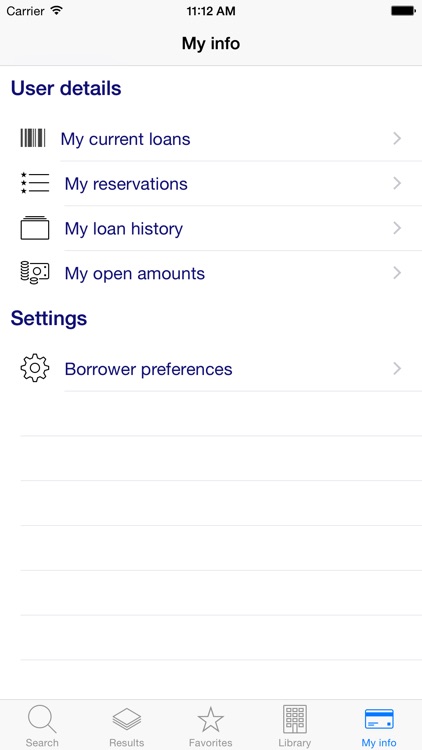
The TU/e Library app enables patrons to search for titles in the TU/e library, and view title metadata and full text documents if available. Titles can be stored in the app as favorites, which act as a shortcut to the actual record in the library database. User activities include reservations, renewals, current loans, loan history (when activated through the library desk) and open amounts payable to the library. Library news and contact information is also available.
App Screenshots
App Store Description
The TU/e Library app enables patrons to search for titles in the TU/e library, and view title metadata and full text documents if available. Titles can be stored in the app as favorites, which act as a shortcut to the actual record in the library database. User activities include reservations, renewals, current loans, loan history (when activated through the library desk) and open amounts payable to the library. Library news and contact information is also available.
Usage instructions:
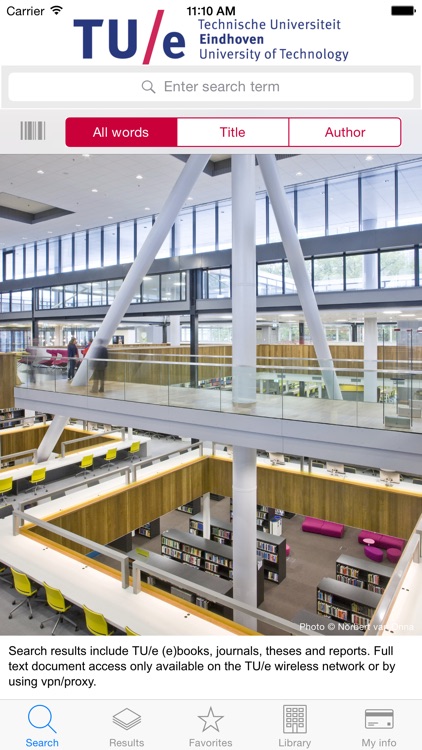
- The main screen can be used to search for titles in the TU/e collection on all words, title and author.
- The scan button on the left hand side of the seachbar enables users to scan item or isbn barcodes on books, or QR codes. The app will search for information about the title in the catalog, offer to open a QR url or find more information on the internet. The button is active on devices with a camera.
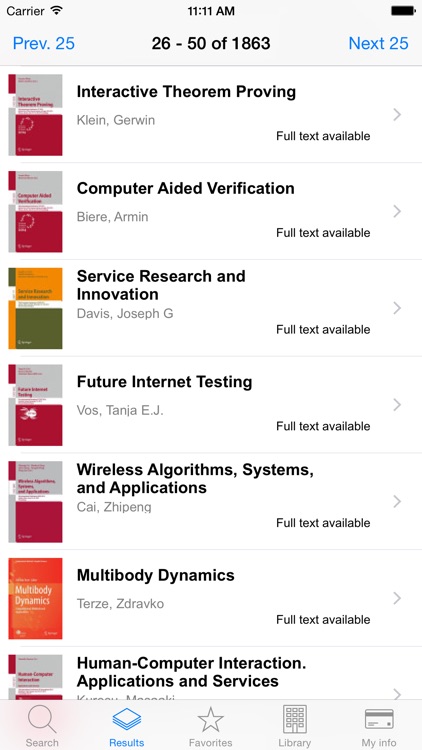
- The results will be displayed on the second tab, where availability is indicated.
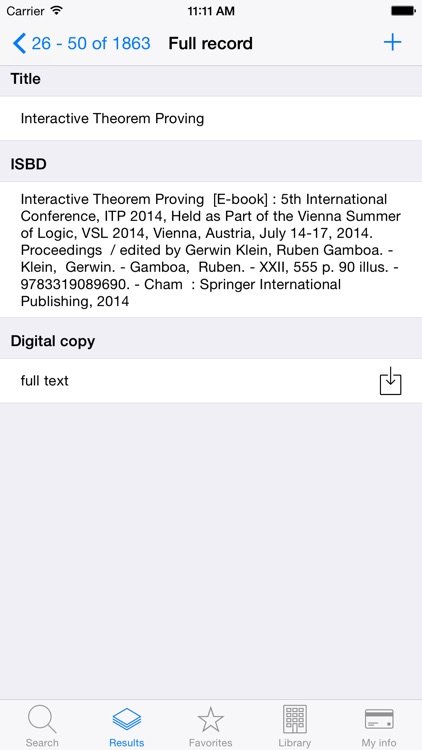
- Clicking an item on the result list shows the full description, where titles can be saved in favorites by clicking the plus symbol at the top right. Favorites can be edited on the favorites screen.
- When a full text copy is available online, the full text button will be active. For easy full text browsing on the iPhone, use the internal TU/e wireless network (Eduroam will not work). When outside the campus the browser will redirect to the proxy login, after which full text information can be downloaded also.
- Full text documents will be displayed in Safari. From iOS version 4.2 and later you will see the option "store in iBooks" when viewing a pdf. This will store the document in your iBooks database on the iPhone.
- The reservation button is visible when physical items for the requested title are available. Because there are various reasons why a title can or cannot be reserved, the system will first try to determine the possibility of a reservation. You will be prompted for confirmation when a reservation is possible.
- To use the "my info" options, please fill in your credetials first under the borrower preferences. If you do not have a pincode, you can request one on the user information login screen in the catalog website.
- The loan history option requires activation of loan history on your library account. Please contact the local library desk to activate the option.
Disclaimer:
AppAdvice does not own this application and only provides images and links contained in the iTunes Search API, to help our users find the best apps to download. If you are the developer of this app and would like your information removed, please send a request to takedown@appadvice.com and your information will be removed.
AppAdvice does not own this application and only provides images and links contained in the iTunes Search API, to help our users find the best apps to download. If you are the developer of this app and would like your information removed, please send a request to takedown@appadvice.com and your information will be removed.
