You are using an outdated browser. Please
upgrade your browser to improve your experience.
Now you can conveniently run Winboard Embedded Test Kits like the WE-20 or Bantam Plus from your iPad or iPhone

Winboard Embedded Remote
by Watthour Engineering

What is it about?
Now you can conveniently run Winboard Embedded Test Kits like the WE-20 or Bantam Plus from your iPad or iPhone.
App Store Description
Now you can conveniently run Winboard Embedded Test Kits like the WE-20 or Bantam Plus from your iPad or iPhone.
Features:
Easily connect using Auto Find Technology. Auto Find searches for any portable test kit connected to the same network as your iPad or iPhone allowing the option of controlling multiple test kits.
iPad and iPhone Controls for Winboard Embedded Devices:
• Pinch to zoom.
• Tap and hold to right click.
• Tap, then tap and drag to click and drag.
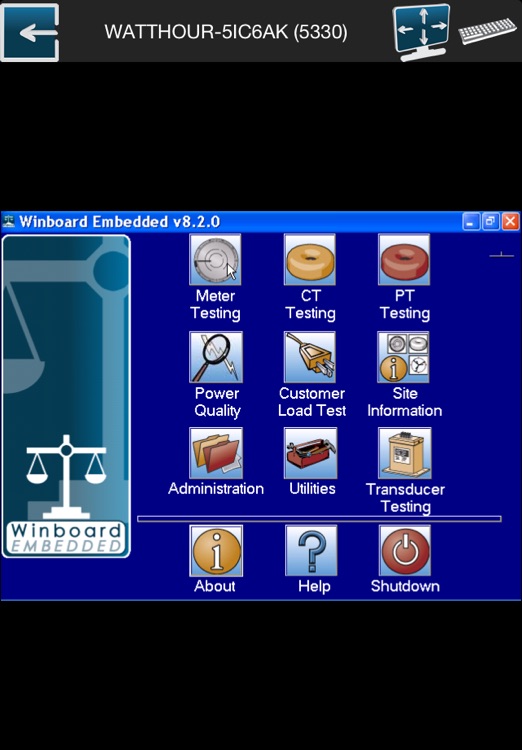
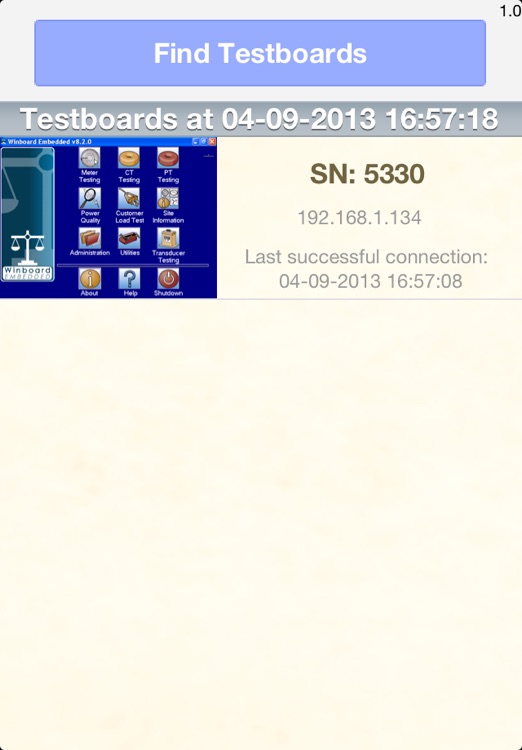
After installing the app, tap to open the home screen. You should now see a list of available Testboards. Select the desired unit you wish to access. Across the top of the Testboard’s screen you see a toolbar. If you tap the icon on the far left, you will return to the home screen. The name of the unit is displayed in the middle of the toolbar. To the right of the screen are two additional icons. The first one allows you to adjust your screen size. The icon on the far right is the Keyboard icon - which activates your iPhone or iPad keyboard. Now, you are ready to use your Testboard!
Requires A wireless network adapter internal to the test kit. For set up instructions visit http://www.watthour.com/website/hardware_we20.php#remote_connection
Trouble-shooting:
If you do not see any Testboards listed. Go to your iPhone/iPad Settings. Under Wi-Fi select the desired network. If you still do not see the network, tap Other and select add. Enter the Network Name and then tap Join.
Disclaimer:
AppAdvice does not own this application and only provides images and links contained in the iTunes Search API, to help our users find the best apps to download. If you are the developer of this app and would like your information removed, please send a request to takedown@appadvice.com and your information will be removed.
AppAdvice does not own this application and only provides images and links contained in the iTunes Search API, to help our users find the best apps to download. If you are the developer of this app and would like your information removed, please send a request to takedown@appadvice.com and your information will be removed.
